





Wi-Fi Internet Access Tutorial

Table of contents
1. Confirm device supports Wi-Fi
- Mobile phones, tablets, and computers need to have it built-in. Wi-Fi Functionality (supported by almost all modern devices).
- Check: Settings → Network → See if there is a "Wi-Fi" option.
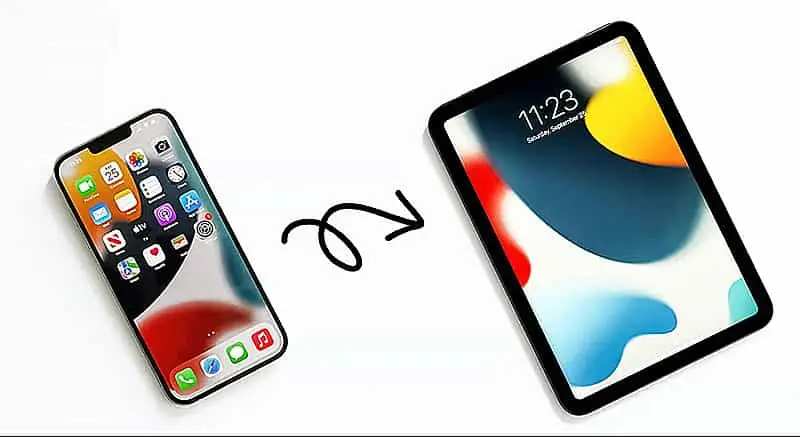
2. Turn on Wi-Fi
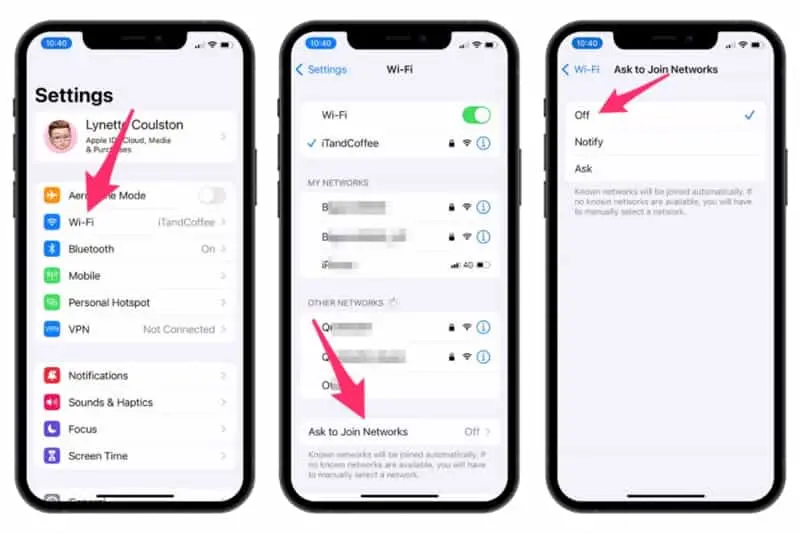
- iPhone / iPad:
- Open the "Settings" app.
- Select "Wi-Fi".
- Switch the switch to "On" (green).
- Android phones/tablets:
- Pull down the notification bar → tap the "Wi-Fi" icon to turn it on.
- Alternatively: Settings → Network & Internet → Wi-Fi → Turn on.
- Windows PC:
- Tap the network icon in the bottom right corner → Tap "Wi-Fi" to turn it on.
- Alternatively: Settings → Network & Internet → Wi-Fi → Turn on.
- Mac:
- Tap the Wi-Fi icon in the upper right corner → Select "Turn on Wi-Fi".
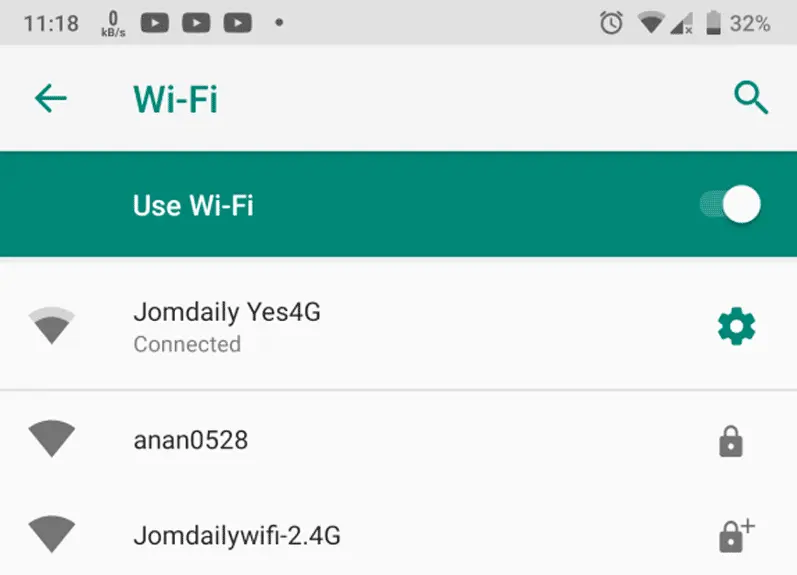
3. Search for and connect to Wi-Fi networks
- After Wi-Fi is turned on, the device will automatically scan for nearby networks.
- Select the network name (SSID) you want to connect to.
- If there is a password:
- Enter the correct password (case sensitive).
- Click "Connect" or "Join".
- Once successful, it will display "Connected" or a checkmark symbol.
4. Troubleshooting Common Problems
- Can't find the internet?
- Move closer to the router, turn Wi-Fi back on, and restart the router.
- Incorrect password?
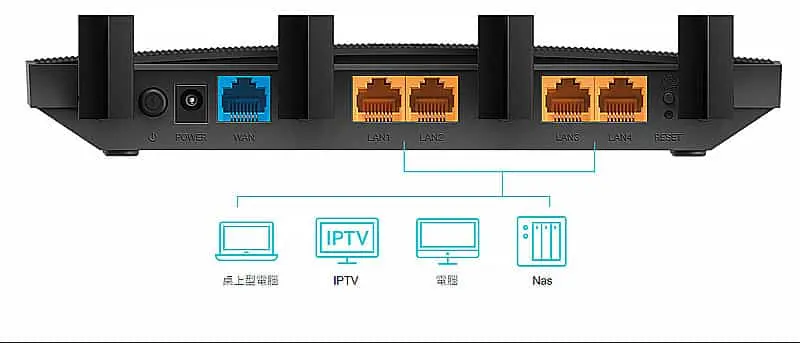
- Check for capitalization and special characters. If necessary, reset the router password (the default password is usually found on the back of the router).
- Unstable connection?
- Avoid interference from microwave ovens and metal objects; switch to the 5GHz band (if your router supports it).
- Forgot about the internet?
- Settings → Wi-Fi → Tap the "i" next to the network → "Forgot this network".
5. Public Wi-Fi Precautions
- Avoid entering sensitive information such as bank details and passwords.
- It is recommended to use a VPN for encrypted connections.
- After connecting, check if you are redirected to the login page (common in cafes and hotels).

A little reminder:
- It is recommended to change your home router password regularly (at least 12 characters, including uppercase and lowercase letters, numbers, and symbols).
- To share Wi-Fi, you can use a QR code (iPhone: Settings → Wi-Fi → Tap Network → Share; Android: Generate a QR code for others to scan).